Pages

Showing posts with label SQL Server Compact Edition. Show all posts

Friday, January 10, 2014

SQL Server Compact Toolbox 3.7–Visual Guide of new features

After more than 235.000 downloads, version 3.7 of my SQL Server Compact Toolbox extension for Visual Studio 2013, 2012 and 2010 is now available for download (and available via Tools/Extensions in Visual Studio). This blog post is a visual guide to the new features included in this release, many suggested by users of the tool via the CodePlex issue tracker. A major “theme” for this release has been to improve the experience for Visual Studio 2013 users, which has no Server Explorer/DDEX support for SQL Server Compact at all.

Add Column, Index and Foreign Key to table

As Server Explorer support is completely missing in VS 2013, and only available for 4.0 in VS 2012, I have added dialogs for building script to add columns, indexes and foreign keys to a table. Right click any table, and select the desired dialog:

image

image

image

  image

Note that currently the Index and Foreign Key dialogs only support a single column, I am aware of this, so please vote here and/or here.

Generate Entity Framework 6 Entity Data Model with VS 2012 and SQL Compact 3.5

The code generation menu items have now been moved to a sub-menu:

image

In addition, as the Entity Framework Tools are now available for Visual Studio 2012 as well as Visual Studio 2013, it is now possible to generate a “database first” Entity Framework model (EDMX) based on a SQL Server Compact database in VS 2012. And I have just contributed an Entity Framework SQL Server Compact 3.5 provider (available as prerelease on NuGet), that allows you to use SQL Server Compact 3.5 with Entity Framework 6. 

Copy database file

It is now possible to copy a database file, and then for example paste it into your project, should you so desire, simply by pressing Ctrl+C on the selected database, or selecting the context menu item:

image

Data only export to SQL Server

The current data export feature has been enhanced to support SQL Server and IDENTITY columns by using DBCC CHECKINDENT instead of the unsupported ALTER TABLE statements currently used.

image

New "ALTER column" context menu item

To help you modify columns, a new context menu to script ALTER COLUMN statements has been added:

image

“Database designer”

I am now hosting a web based database designer based on http://code.google.com/p/wwwsqldesigner/ (which implements only the SQL Server Compact column data types). Current state is “alpha” (and there are known issues with IE 11)!

Server DGML now has table selection
When generating a database diagram for a SQL Server database, you can now select which tables to include in the graph, which can be helpful when diagramming databases with many tables. I have already blogged about this earlier.
Other improvements and bug fixes

Missing database files indicated in tree view
No longer depends on the SQL Server Compact 3.5 runtime, and no longer depends on DbProviderFactory, simply requires either 3.5 or 4.0 in GAC
Each Query opens in new window
BUG: "Upgrade to 4.0" was blocked in Visual Studio 2013
BUG: Not ideal support for Dark Theme in VS 2012/2013 (improved slightly)
BUG: EF6 EDMX code generation with VB was broken

READ MORE - SQL Server Compact Toolbox 3.7–Visual Guide of new features

Monday, December 2, 2013

The trouble with Any CPU–Prefer 32 bit–BadImageFormatException

In my previous 2 blog posts here and here, I have briefly mentioned the new default Target Platform for new .NET 4.5/4.5.1 projects in Visual Studio 2012/2013. To be perfectly honest, it was not exactly clear why this was an issue with the SQL Server Compact ADO.NET provider, so I decided to dig a little deeper.

To read more about the new default Platform target option introduced in .NET 4.5, see the MSDN documentation here, and the blog post here.

image

Why is this Target platform an issue for the SQL Server Compact provider?

Let’s find out how the provider detects if it is running on a x86 or x64 (AMD64) system. In .NET 4.0, two new properties were introduced, System.Environment.Is64BitProcess and System.Environment.Is64BitOperatingSystem (for a nice overview of their implementation see this blog post. But the provider code is old, and uses a different method: It looks at the PROCESSOR_ARCHITECTURE environment variable, and assumes that it reflects the value of the current process bitness (possible values are x86 and AMD64 on a Intel x64 system). In fact, it first looks in the .exe folder for a valid version of sqlceme40.dll, and if not found, then in a subfolder named after the processor architecture (ie x86 or AMD64).

In order to test how an app responds, I then made a small .NET 4.5 console app to test the values of the new Environment properties and the PROCESSOR_ARCHITECTURE value. I added the SQL Server Compact NuGet package (Microsoft.SqlServer.Compact) to test how the engine responds using Private Deployment under the four different Target Platform options. And I uninstalled the SQL Server Compact 4.0 runtime from Add/Remove Programs, so it is no longer in the GAC.

string path = @"c:\temp\test.sdf";
Console.WriteLine("Is64BitOS: " + System.Environment.Is64BitOperatingSystem);
Console.WriteLine("Is64BitProc: " + System.Environment.Is64BitProcess);
Console.WriteLine("PROCESSOR_ARCHITECTURE: " + System.Environment.GetEnvironmentVariable("PROCESSOR_ARCHITECTURE"));
Console.ReadKey();
if (System.IO.File.Exists(path))
System.IO.File.Delete(path);
using (SqlCeEngine engine = new SqlCeEngine(string.Format("Data Source={0}", path)))
{
engine.CreateDatabase();
}


1: Output with Any CPU, Prefer 32 bit:


Is64BitOS: True
Is64BitProc: False
PROCESSOR_ARCHITECTURE: AMD64


And getting error: Unable to load the native components of SQL Server Compact corresponding to the ADO.NET provider of version 8876.

As you can see even if it is a 32 bit process, the PROCESSOR_ARCHITECTURE variable has the “wrong” value, causing the SQL Server Compact ADO.NET provider System.Data.SqlServerCe.dll to try to load the dll files from the AMD64 folder in a 32 bit process.


2: Output with Any CPU, Prefer 32 bit unchecked:


Is64BitOS: True
Is64BitProc: True
PROCESSOR_ARCHITECTURE: AMD64


- and no errors


3: Output with x64:


Is64BitOS: True
Is64BitProc: True
PROCESSOR_ARCHITECTURE: AMD64


- and no errors


4: Output with x86:


Is64BitOS: True
Is64BitProc: False
PROCESSOR_ARCHITECTURE: x86


- and no errors


Hopefully this blog post will prevent some form getting bitten by this “issue”, which also affects the SQLite ADO.NET provider.

READ MORE - The trouble with Any CPU–Prefer 32 bit–BadImageFormatException

Monday, October 7, 2013

SQL Server Compact 4 desktop app with simple Private Deployment and LINQ to SQL

In this post I will describe a simplified approach to SQL Server Compact Private Deployment, for an overview blog post on Private Deployment with SQL Server Compact, see my blog post here.

By forcing your app to run using x86 always (Prefer 32-bit), which is the new default Platform target option  for apps targeting .NET Framework 4.5, deployment of SQL Server Compact with you app becomes simpler, but must follow different guidelines from what I have previously blogged about. (The same approach will also work with apps targeting .NET 4.0, just set the Platform target to x86 in the location shown below. And the same approach will also work with the SQL Server Compact 3.5 DLL files.)

image

To read more about the new default Platform target option introduced in .NET 4.5, see the MSDN documentation here, and the blog post here.

In addition, I will demonstrate how to use LINQ to SQL with SQL Server Compact 4.0, a low overhead, fast performing ORM.

For the sake of simplicity, and in order to focus attention on the private deployment aspects, I will demonstrate with a console application, but the same approach will also work for WinForms and WPF applications.

Before you get started, make sure you have the following installed:

1: Visual Studio 2010/2012/2013 Pro or higher 

2: SQL Server Compact Toolbox add-in (Install via Tools/Extensions in VS)

3: An existing SQL Server Compact database file, I will use Chinook, which you can download from here

4: The SQL Server Compact 4.0 SP1 runtime

(You could also use the free Visual Studio 2010/2012/2013 for Windows Desktop with the standalone SQL Server Compact Toolbox for 4.0, which also supports LINQ to SQL code generation)

With that in place, let us open Visual Studio and get started:

Create new console application

Go to File, New Project, and create a new Windows Console application. Make sure to set the target platform to 4.0 or newer.

image

Include the SQL Server Compact binaries in your project

Now include the SQL Server Compact 4.0 binaries and ADO.NET Provider as content in your app. Copy C:\Program Files (x86)\Microsoft SQL Server Compact Edition\v4.0\Private\System.Data.SqlServerCe.dll to your project folder, and then copy all files and folders in C:\Program Files (x86)\Microsoft SQL Server Compact Edition\v4.0\Private\x86 also to your project folder.

In the Solution Explorer, select Show All Files, and include the new folder and the seven files just copied in the Project:

image

Now mark all the copied files (also the files in the Microsoft.VC9.CRT folder) and mark them as Content, Copy Always:

image

Finally, add a Reference to the System.Data.SqlServerCe.dll file in your project folder:

image

(Make sure to check the file location and the Version, should be 4.0.0.1)

Add your database file to the project

Make sure it is also Content, Copy Always – we use the”Database First” workflow here.

Generate the LINQ to SQL DataContext

Next,we will generate a LINQ to SQL DataContext class and related Table classes based on the database, so connect to the database in SQL Server Compact Toolbox, using the Add SQL Server Compact 4.0 Connection menu item:

image

Then right click the database and select “Add LINQ to SQL DataContext to current project”:

image

(I am just using ChinookContext as Context name)

Click OK, and a DataContext class file will be added to your project, and the required reference to System.Data.Linq will be added to the project.

Now let us add some test code to the Main method in order to verify that everything works so far, so the Program.cs code looks like this:

using System;
using System.Data.SqlServerCe;

namespace LinqToSqlCePrivateDeploy
{
class Program
{
private const string
dbFileName = "Chinook_SqlServerCompact_AutoIncrementPKs.sdf";

private static string dbConnectionString =
string.Format("Data Source=|DataDirectory|{0};Max Database Size=4091", dbFileName);
static void Main(string[] args)
{
using (var connection =
new SqlCeConnection(dbConnectionString))
{
using (var context = new ChinookContext(connection))
{
//To log SQL statements, use:
//context.Log = Console.Out;
foreach (var album in context.Album)
{
Console.WriteLine(album.Artist.Name);
Console.WriteLine(album.Title);
}
}
}
Console.Read();
}
}
}


We can now access the database via the generated object model, and do not have to type SQL, but can use LINQ to query the database. In addition, we can update the database (INSERT, UPDATE, DELETE) via methods on the DataContext.

Notice that the DataContext must be constructed with a SqlCeConnection object, in order for LINQ to SQL to work with SQL Server Compact 4.0.

Deploy the database file

The final step will be done to ensure that the database file will be located in a writeable location on the users machine when deployed/installed. We will simply do this in code in order to not depend on any install actions and issues. In addition, we can do this without storing any connection strings in app.config, making the app more self-contained. We will use the same approach that I have already used in my blog post here, which takes advantage of the DataDirectory connection string macro.

private static void CreateIfNotExists(string fileName)
{
string path = Environment.GetFolderPath(Environment.SpecialFolder.ApplicationData);
// Set the data directory to the users %AppData% folder
// So the database file will be placed in: C:\\Users\\\\AppData\\Roaming\\
AppDomain.CurrentDomain.SetData("DataDirectory", path);

// Enure that the database file is present
if (!System.IO.File.Exists(System.IO.Path.Combine(path, fileName)))
{
//Get path to our .exe, which also has a copy of the database file
var exePath = System.IO.Path.GetDirectoryName(
new Uri(System.Reflection.Assembly.GetExecutingAssembly().CodeBase).LocalPath);
//Copy the file from the .exe location to the %AppData% folder
System.IO.File.Copy(
System.IO.Path.Combine(exePath, fileName),
System.IO.Path.Combine(path, fileName));
}
}


Remember to add a call to CreateIfNotExists as the first line in the Main method:

static void Main(string[] args)
{
CreateIfNotExists(dbFileName);


You can now use ClickOnce, XCopy or an Installer to deploy your app, with no other requirements than the target .NET Framework version.


What we have achieved:


- Simple, self contained deployment of a single user desktop app of any type to any .NET 4.0 or higher platform (not ARM, though)


- No need for special incantations in app.config


- RAD (Rapid App Development) “Database First” access to a well-performing, well-documented and simple ORM.


You can download the complete solution from here; http://sdrv.ms/179QBaa

READ MORE - SQL Server Compact 4 desktop app with simple Private Deployment and LINQ to SQL

Monday, June 3, 2013

INSERTing many rows with Entity Framework 6 beta 1 and SQL Server Compact

In this blog post I will demonstrate a couple of improvements for adding many entities to a Entity Framework based database. You can read more about the beta 1 release here, and Julie Lerman highlights some of the features that were available in the alpha here. For all full list of EF 6 features, see the list here.

Here we will look at getting started with Entity Framework 6 beta 1, and a couple of improvements that makes adding many rows to a SQL Server Compact database via Entity Framework feasible, and also have look at using my SqlCeBulkCopy library to do the same.

I will use a console app for this project in order to focus on the Entity Framework code. To get started, launch Visual Studio, and create a new Console Application. Lets call it EF6Test.

image

Now let’s add Entity Framework 6 beta 1 SQL Server Compact package. Launch the NuGet Package Mangager Console (from Tools, Other Windows) and run this command:

PM> Install-Package EntityFramework.SqlServerCompact -Pre

(The –Pre switch allows you to install pre-release packages)

You should now see several messages in the window, the last one being:

Successfully added 'EntityFramework.SqlServerCompact 6.0.0-beta1-20603' to EF6Test.

This process has added a number of DLL references to the project, and added an app.config file to the project, with an entityFramework section that specifies the SQL Server Compact default connection factory:


Now add a using statement:

using System.Data.Entity;
And add the following 2 classes before “class Program”, these define our single test table and our DbContext:
    public class Student
{
public int StudentId { get; set; }
public string Name { get; set; }
}

public class StudentContext : DbContext
{
public DbSet Students { get; set; }
}

Now add the following code to the Main method:


   1:              Stopwatch sw = new Stopwatch();
   2:              bool useSqlCeBulkCopy = false;
   3:              var students = CreateStudents();
   4:   
   5:              Database.SetInitializer(new DropCreateDatabaseAlways());
   6:              
   7:              using (var db = new StudentContext())
   8:              {
   9:                  db.Database.Initialize(true);
  10:                  if (!useSqlCeBulkCopy)
  11:                  {
  12:                      sw.Restart();
  13:                      //AddRange rulez, no need for db.Configuration.AutoDetectChangesEnabled = false;
  14:                      db.Students.AddRange(students);
  15:                      sw.Stop();
  16:                      
  17:                      Console.WriteLine(
  18:                          "Added 8000 entities in {0}", sw.Elapsed.ToString());
  19:                      
  20:                      sw.Restart();
  21:                      int recordsAffected = db.SaveChanges();
  22:                      sw.Stop();
  23:   
  24:                      Console.WriteLine(
  25:                          "Saved {0} entities in {1}", recordsAffected, sw.Elapsed.ToString());
  26:                      
  27:                  }
  28:                  Console.ReadKey();
  29:              }
  30:          }
  31:   
  32:          private static List CreateStudents()
  33:          {
  34:              var students = new List();
  35:              for (int i = 0; i < 8000; i++)
  36:              {
  37:                  var student = new Student { Name = Guid.NewGuid().ToString() };
  38:                  students.Add(student);
  39:              }
  40:              return students;
  41:          }


The CreateStudents method simply creates a List object with 8000 Student objects. A new database is created on each run (line 5) and the students are added to the StudentContext DbContext, using the excellent new AddRange method, similar to the LINQ to SQL InsertAllOnSubmit method. With EF5 you only had the Add method, and to get reasonable performance, you had to use the cryptic db.Configuration.AutoDetectChangesEnabled = false statement.


With SQL Server Compact and EF5, inserting 8000 rows takes about 58 seconds on my PC, and it may even time out on yours… Thanks to the fact that Entity Framework is now open source on CodePlex I was able to submit  a bug fix, which  got accepted for EF6, so the process now takes about 8 seconds on my PC.


To compare, let’s add the SqlCeBulkCopy NuGet package and perform the same process using that. In the Package Manager Console. type


PM> Install-Package ErikEJ.SqlCeBulkCopy


Before Console.ReadKey, paste the following code:

                else
{
using (SqlCeBulkCopy bcp = new SqlCeBulkCopy(db.Database.Connection.ConnectionString))
{
bcp.DestinationTableName = "Students";
sw.Restart();
bcp.WriteToServer(students);
sw.Stop();

Console.WriteLine(
"Saved {0} entities using SqlCeBulkCopy in {1}", students.Count, sw.Elapsed.ToString());
}
}


And set useSqlCeBulkCopy = true.On my machine this takes about 150 ms! So despite the improvements made in EF6 beta 1, for larger data loads, I suggest you use SqlCeBulkCopy, and as you can see from the code above, it is very easy to integrate in an Entity Framework context.


You can download the completed project from here: http://sdrv.ms/18NaRmW

READ MORE - INSERTing many rows with Entity Framework 6 beta 1 and SQL Server Compact

Wednesday, December 19, 2012

Integrating Red Gate SmartAssembly in the SQL Server Compact Toolbox

In the next release of the SQL Server Compact Toolbox, which is currently available in an alpha release, I will start using Red Gate SmartAssembly for Error Reporting and quality improvement. In this blog post I will describe the few steps required to integrate SmartAssembly with the Visual Studio VISX build process and in code. Some of these steps are not well documented on the SmartAssembly support site, as in this case we are protecting a DLL file, not an .exe (the more common case), so I thought I would share my findings.

SmartAssembly is a .NET instrumentation tool, that offers centralised error reporting and feature usage tracking (it also offers various obfuscation features, but I am not using these), and includes a nice desktop client, that integrates all the features of the product in a single UI, including viewing your Error Reports and Feature Usage statistics.

image

MSBuild integration

Once you have downloaded SmartAssembly, you can create a new SmartAssembly project (.saproj file) – do this for your add-in DLL, and save the file. Then look at the useful instructions on this support page. You will need to make a change to the instructions on that page, and possibly also your .saproj file:

In your .csproj file (VISX Add-In project), change the SmartAssembly build task to run AfterCompile, not AfterBuild, like this, and add OverwriteAssembly="True" :

Name="AfterCompile" Condition=" '$(Configuration)' == 'Release' ">   

Change the source file in you .saproj file to point to the DLL file in the obj folder, not the bin folder, like so:

.\obj\Release\SqlCeToolbox.dll

This will allow SmartAssembly to instrument your DLL after it has been built, but before it is added to the .VSIX file (which is a .zip file)


Invoking Error Reporting in Code

As the Toolbox is an add-in, I prefer not to catch any unhandled Visual Studio exceptions, but would still like to be able to report any errors occurring in the Toolbox, in order to be able to improve it. SmartAssembly easily allows you to to this.

Start by adding references to  SmartAssembly.ReportException.dll and SmartAssembly.ReportUsage.dll in the C:\Program Files\Red Gate\SmartAssembly 6\SDK\bin folder from your project.

Then in order to invoke Error Reporting, use:

SmartAssembly.ReportException.ExceptionReporting.Report(ex);


Then when a handled exception occurs, the user will see this dialog:

image

And to report usage use:

SmartAssembly.ReportUsage.UsageCounter.ReportUsage(feature);

Where feature is the name of the feature in question.


Hope you found it useful.

READ MORE - Integrating Red Gate SmartAssembly in the SQL Server Compact Toolbox

Tuesday, June 19, 2012

HOW TO: Connect to SQL Server Compact from F#

I have previously blogged about connection to SQL Server Compact from other technologies than pure ADO.NET:

ASP Classic

VBA (Excel)

Silverlight

PowerShell

F# version 3.0 in Visual Studio 2012 makes it relatively easy to connect to a SQL Server Compact database (I am NOT a F# programmer, and even I could connect, so it must be very easy!).

In this blog post I will show the required steps to connect to a SQL Server Compact 4.0 database file and start using it via Entity Framework with F#.

In VS 2012 (currently RC), create a new F# application:

image

Now add references to the required libraries (Entity Framework and F# Type Providers):

FSharp.Data.TypeProviders
System.Data.Entity
System.Data.Linq

image

I order to access SQL Server Compact via EF 4 from F#, and Entity Data Model file (.EDMX) file is required. And the EDMX Wizard and Designer only works with C# and VB.NET projects, so to create this, add a Visual C# Console project to the solution:

image

Now add the EDMX file to this project, right click the project, select Add, New Item…, Data,

image

Select generate from database, and point to the desired SQL Server Compact 4.0 database.

Just say no:

image

The Console project now contains an EDMX file, and a useful connection string in app.config.

Now go back to the F# project clear program.fs, and add the following “using” statements:

open System
open System.Data.Linq
open System.Data.EntityClient
open Microsoft.FSharp.Data.TypeProviders


Grab the connectionString value from the console project app config, and add this line:

let internal connectionString = "metadata=res://*/;provider=System.Data.SqlServerCe.4.0;provider connection string='data source=C:\\Data\\SQLCE\\Test\\nw40.sdf';"


Notice the changes to the provider connection string - =" has been change to single quote, and backslashes have been escaped.


Now add the EDMX file from the Console project to the F# project as Content:


image


You can now initialize the EF type provider like so:

type internal edmx = EdmxFile<"NWModel.edmx">


And start using the context like this:

let internal context = new edmx.nw40Model.nw40Entities(connectionString)

let internal res = query { for supplier in context.Suppliers do select supplier }

res|> Seq.iter (fun supplier -> printfn "%s" supplier.Company_Name)

let wait = Console.ReadKey()

READ MORE - HOW TO: Connect to SQL Server Compact from F#

Sunday, April 15, 2012

Comparison of SQL Server Compact, SQL Server Express 2012 and LocalDB

Now that SQL Server 2012 and SQL Server Compact 4 has been released, some developers are curious about the differences between SQL Server Compact 4.0 and SQL Server Express 2012 (including LocalDB)

I have updated the comparison table from the excellent discussion of the differences between Compact 3.5 and Express 2005 here to reflect the changes in the newer versions of each product.

Information about LocalDB comes from here and SQL Server 2012 Books Online. LocalDB is the full SQL Server Express engine, but invoked directly from the client provider. It is a replacement of the current “User Instance” feature in SQL Server Express.

Feature

SQL Server Compact 3.5 SP2

SQL Server Compact 4.0

SQL Server
Express 2012

SQL Server 2012 LocalDB

Deployment/Installation Features


Installation size

2.5 MB download size
12 MB expanded on disk

2.5 MB download size
18 MB expanded on disk

120 MB download size
> 300 MB expanded on disk

32 MB download size
> 160 MB on disk

ClickOnce deployment

Yes

Yes

Yes

Yes

Privately installed, embedded, with the application

Yes

Yes

No

No

Non-admin installation option

Yes

Yes

No

No

Runs under ASP.NET

No

Yes

Yes

Yes

Runs on Windows Mobile / Windows Phone platform

Yes

No

No

No

Installed centrally with an MSI

Yes

Yes

Yes

Yes

Runs in-process with application

Yes

Yes

No

No (as process started by app)

64-bit support

Yes

Yes

Yes

Yes

Runs as a service

No – In process with application

No - In process with application

Yes

No – as launched process

Data file features


File format

Single file

Single file

Multiple files

Multiple files

Data file storage on a network share

No

No

No

No

Support for different file extensions

Yes

Yes

No

No

Database size support

4 GB

4 GB

10 GB

10 GB

XML storage

Yes – stored as ntext

Yes - stored as ntext

Yes

Yes

Binary (BLOB) storage

Yes – stored as image

Yes - stored as image

Yes

Yes

FILESTREAM support

No

No

Yes

No

Code free, document safe, file format

Yes

Yes

No

No

Programmability


Transact-SQL - Common Query Features

Yes

Yes

Yes

Yes

Procedural T-SQL - Select Case, If, features

No

No

Yes

Yes

Remote Data Access (RDA)

Yes

No (not supported)

No

No

ADO.NET Sync Framework

Yes

No

Yes

Yes

LINQ to SQL

Yes

No (not supported)

Yes

Yes

ADO.NET Entity Framework 4.1

Yes (no Code First)

Yes

Yes

Yes

Subscriber for merge replication

Yes

No

Yes

No

Simple transactions

Yes

Yes

Yes

Yes

Distributed transactions

No

No

Yes

Yes

Native XML, XQuery/XPath

No

No

Yes

Yes

Stored procedures, views, triggers

No

No

Yes

Yes

Role-based security

No

No

Yes

Yes

Number of concurrent connections

256 (100)

256

Unlimited

Unlimited (but only local)

There is also a table here that allows you to determine which Transact-SQL commands, features, and data types are supported by SQL Server Compact 3.5 (which are the same a 4.0 with very few exceptions), compared with SQL Server 2005 and 2008.

READ MORE - Comparison of SQL Server Compact, SQL Server Express 2012 and LocalDB

Sunday, February 26, 2012

Migrating databases between SQL Server and SQL Server Compact

In this post, I will try to give an overview of the free tools available for developers to move databases from SQL Server to SQL Server Compact and vice versa. I will also show how you can do this with the SQL Server Compact Toolbox (add-in and standalone editions).

Moving databases from SQL Server Compact to SQL Server

This can be useful for situations where you already have developed an application that depends on SQL Server Compact, and would like the increased power of SQL Server or would like to use some feature, that is not available on SQL Server Compact. I have an informal comparison of the two products here. Microsoft offers a GUI based tool and a command line tool to do this: WebMatrix and MsDeploy. You can also use the ExportSqlCe command line tool or the SQL Server Compact Toolbox to do this. To use the ExportSqlCE (or ExportSqlCE40) command line, use a command similar to:

ExportSQLCE.exe "Data Source=D:\Northwind.sdf;" Northwind.sql

The resulting script file (Northwind.sql) can the be run against a SQL Server database, using for example the SQL Server sqlcmd command line utility:

sqlcmd -S mySQLServer –d NorthWindSQL -i C:\Northwind.sql

To use the SQL Server Compact Toolbox:

Connect the Toolbox to the database file that you want to move to SQL Server:

image

Right click the database connection, and select to script Schema and Data:

image

Optionally, select which tables to script and click OK:

image

Enter the filename for the script, default extension is .sqlce:

image

Click OK to the confirmation message:

image

You can now open the generated script in Management Studio and execute it against a SQL Server database, or run it with sqlcmd as described above.

Moving databases from SQL Server to SQL Server Compact

Microsoft offers no tools for doing this “downsizing” of a SQL Server database to SQL Server Compact, and of course not all objects in a SQL Server database CAN be downsized, as only tables exists in a SQL Server Compact database, so no stored procedures, views, triggers, users, schema and so on. I have blogged about how this can be done from the command line, and you can also do this with the SQL Server Compact Toolbox (of course):

From the root node, select Script Server Data and Schema:

image

Follow a procedure like the one above, but connecting to a SQL Server database instead.

The export process will convert the SQL Server data types to a matching SQL Server Compact data type, for example varchar(50) becomes nvarchar(50) and so on. Any unsupported data types will be ignored, this includes for example computed columns and sql_variant. The new date types in SQL Server 2008+, like date, time, datetime2 will be converted to nvarchar based data types, as only datetime is supported in SQL Server Compact. A full list of the SQL Server Compact data types is available here.

READ MORE - Migrating databases between SQL Server and SQL Server Compact

Tuesday, January 24, 2012

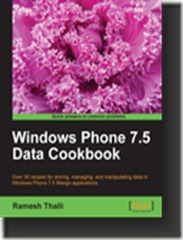
Review of “Windows Phone 7.5 Data Cookbook”

The “Windows Phone 7.5 Data Cookbook” is a collection of more that 30 so-called recipes  for working with with data in Windows Phone 7.5 applications. It covers all data related tasks from UI data binding and MVVM to using WCF Data Services.

A recipe is a step-by-step walkthrough of a sample mini application, that covers the subject at hand. All the samples are available for download from the publishers web site for registered users.

The book covers the following topics:
- Data binding, including element binding, DataContext, data templates, converters.
- Isolated storage
- Using XML files
- Consuming OData, and performing CRUD against OData sources
- Using on-device databases, including Perst, SQLite and SQL Server Compact with LINQ to SQL
- Consuming REST feeds, and creating a REST service
- WCF Data Services
- MVVM

The hands-on approach is useful for any developer new to the Windows Phone platform, and can also be used a samples for seasoned developers in need of a quick solution to a problem.

You can also download a sample chapter of the book, Chapter 2 – Isolated Storage to get a feel for the format.

1222EXP_Windows%20Phone%207%20Data%20Cookbook

READ MORE - Review of “Windows Phone 7.5 Data Cookbook”

Wednesday, January 4, 2012

CSV to SQL Server Compact scripting utility

My SSMS and Visual Studio add-ins for SQL Server Compact includes the option to import CSV files. But this GUI based feature does not work so well with larger CSV files, as the generated INSERT script can become very large. So I have now made available a command line utility that performs the same functionality, but works better with larger CSV files (and allows you to automate the process).

Please give the utility a try, and provide feedback here.

image

READ MORE - CSV to SQL Server Compact scripting utility

Monday, November 14, 2011

SQL Compact 3rd party tools

This is an attempt at a comprehensive list of SQL Server Compact Microsoft and 3rd party tools, both commercial and non-commercial. Please let me know if I have missed anything, and I will add it.

Microsoft supplied tools

SQL Server 2005 Management Studio Express SP2 (free, SQL CE 3.1)
Link: http://www.microsoft.com/en-us/download/details.aspx?id=15366

SQL Server 2008 R2 Management Studio Express (free, SQL CE 3.5 SP2)
Link: http://www.microsoft.com/en-us/download/details.aspx?id=30438

Visual Studio 2005 Standard (SQL CE 3.1)

Visual Studio 2008 Professional (SQL CE 3.5)

Visual Studio 2010 Web Developer Express with SP1 + SQL CE 4.0 Tools (free, SQL CE 3.5 SP2 + 4.0)
Link: http://www.microsoft.com/visualstudio/eng/downloads#d-2010-express

WebMatrix (free, SQL CE 4.0)
Link: http://www.microsoft.com/web/webmatrix/

New or updated entries are noted with (new) or (updated)
”Last updated” indicates when the tool was last updated by it’s author.

Non-commercial (free) tools

My CodePlex Tools

Name: SQL Server Compact Toolbox (updated)
Link: http://sqlcetoolbox.codeplex.com/
SQL CE Versions: 3.5, 4.0
Last updated: Current
Platforms: Win32, Win64 
Added to list: 29th June 2010
”Add-in for Visual Studio 2013/2012/2010 (for 3.5 and 4.0). Standalone app (for 4.0 and 3.5)
Adds several features to help your SQL Server Compact development efforts:
- Scripting of tables, including data.
- Script of entire schema, optionally with data, both of SQL Server Compact and SQL Server 2005 or later databases, including SQL Azure.
- Import to SQL Compact 3.5 from a server database or CSV file.
- Basic, free form query execution.
- Generation of DGML files for visualizing table relationships
- Database Schema Diff Script
- Detect database file version
- Generate EDMX in any project type
- Generate Windows Phone DataContext
- Fix broken connection definitions”

Name: SqlCeScripting.dll (updated)
Link: http://exportsqlce.codeplex.com/
SQL CE Versions: 3.5, 4.0
Last updated: Current
Platforms: Win32, Win64 
Added to list: 29th June 2010
”Scripting library for inclusion in your own application, enumerates SQL Compact objects and allows scripting of these.”

Name: SqlCeCmd (updated)
Link: http://sqlcecmd.codeplex.com/
SQL CE Versions: 3.5, 4.0
Last updated: 2010
Platforms: Win32, Win64
”Administer SQL Compact databases directly from the command line, without having Visual Studio or SQL Server Management Studio installed. Only requires NetFx 2.0 and SQL Compact installed. Command line options similar to sqlcmd. Runs scripts generated by ExportSqlCe.”

Name: ExportSqlCe (updated)
Link: http://exportsqlce.codeplex.com/
SQL CE Versions: 3.0, 3.5, 4.0
Last updated: Current
Platforms: Win32, Win64 
”This command line utility helps you better manage your SQL Compact development efforts. If allows you to script schema and data from any SQL Compact database file to a .sql file, which can be used in any context. The utility is developed in C# with Visual Studio 2008. You can use the resulting script for documentation, programmatic scripting of SQL Compact database files, or migration of schema and data to SQL Server (Express) 2005 or later.

Name: Export2SqlCe (updated)
Link: http://exportsqlce.codeplex.com/
SQL Server Versions: 2005, 2008 
Last updated: Current
Platforms: Win32
Added to list: 4th March 2010
”A command line utility to script an entire SQL Server 2005 or later database with or without data to a SQL Compact T-SQL script.”

Name: ExportSqlCe SSMS 2008 Addin
Link: http://exportsqlce.codeplex.com/
SQL CE Versions: 3.5
Last updated: 2012
Platforms: Win32
”Script database/table schema/data and also DML  (SELECT, INSERT, UPDATE, DELETE) directly from the Object Explorer in SQL Server 2008 Management Studio (Express). In addition, Edit table data, Import data from as CSV file and Rename the table.”

Name: SqlCeBulkCopy (updated) 
Link: http://sqlcebulkcopy.codeplex.com/
SQL CE Versions: 3.5, 4.0
Last updated: Current 
Platforms: .NET library, .NET CF library 
Added to list: 4th March 2010 
”.NET Library for loading data fast (doing bulk inserts) into a SQL Server Compact database file. Attempts to mimic the SQLClient SqlBulkCopy API. Includes support for BULK INSERTing any IEnumerable”

Query and database management tools

Name: Data Port Console
Link: http://primeworks-mobile.blogspot.dk/2013/09/data-port-console-is-now-free.html
SQL CE Versions: 2.0, 3.0, 3.5, 4.0
Last updated: 2012
Platforms: Windows CE, Win32
”Manage all your SQL Compact Edition databases from one central location with the new Data Port Console.”

Name: Data Port Wizard
Link: http://primeworks-mobile.blogspot.dk/2013/09/data-port-wizard-is-now-free.html
SQL CE Versions: 2.0, 3.0, 3.5, 4.0
Last updated: 2011
Platforms: Windows CE, Win32
”Quickly and easily transfer databases from the desktop to the Mobile Device and back. Data Port Wizard will make full copies of your Microsoft Access or Microsoft SQL Server databases into SQL Server Compact Edition 3.5 and 3.0, and SQL CE 2.0 databases - and back.”

Name: CompactView
Link: http://sourceforge.net/p/compactview/home/Home/
SQL CE Versions: 3.1, 3.5, 4.0
Last updated: 2012
Platforms: Win32, Win64
Added to list: 14th November 2011
CompactView is a viewer for Microsoft® SQL Server® Compact Edition (SQLCE) database files (*.sdf). CompactView can open database files of versions 3.1, 3.5 and 4.0

Name: SQL Compact Query Analyzer
Link: http://sqlcequery.codeplex.com/
SQL CE Versions: 3.1, 3.5, 4.0
Last updated: 2012
Platforms: Win32, Win64
Added to list: 3rd July 2011 
Features:
- Execute SQL Queries against a SQL Server Compact Edition database
- Table Data Editor to easily edit the contents of the database
- Supports SQLCE 3.0, 3.1, 3.5 and 4.0
- Execute multiple SQL queries (delimited by a semi colon ;)
- Display query result as XML
- Shrink and Compact Databases


- Generate Schema and Data Scripts
- Display database and schema information

Name: LINQPad
Link: http://www.linqpad.net/
SQL CE Versions: 3.5, 4.0
Last updated: Current
Platforms: Win32, Win64
Added to list: 14th December 2010
Linqpad allows you to query various data sources via LINQ, including SQL Server Compact 3.5 and 4.0. See this blog post.

Name: Database .NET
Link: http://fishcodelib.com/Database.htm
SQL CE Versions: 3.1, 3.5, 4.0
Last updated: Current
Platforms: Win32, Win64
Added to list: 20th September 2010
“Database .NET is a simple and intuitive database management tool for multiple databases. Making Local and Remote Database Administration Easier, With it you can Create databases, Design tables, Edit data, Export data, Generate scripts and run SQL queries.”

Name: SQL CE Browser
Link: http://ericwillis.com/notes/2009/12/sql-ce-browser-v-110/
SQL CE Versions: 3.5
Last updated: 2010
Platforms: Win32, Win64 (?)
Added to list: 4th March 2010 
”Open regular and encrypted/passworded databases for viewing or editing. Write and work with any number of queries at once via tabs. SQL syntax highlighting and SQL syntax verification. Explore columns, keys, and indexes“

Name: Mini SQL Query
Link: http://minisqlquery.codeplex.com/ 
SQL CE Versions: 3.5
Last updated: 2012
Platforms: Win32, Win64 (?)
Added to list: 4th March 2010 
”Mini SQL Query is a minimalist SQL query tool for multiple databases (MSSQL, MSSQL CE, SQLite, OLEDB, MS Access/Excel files etc). The tool uses a generic schema engine taking advantage of the ADO.NET providers. Mini SQL Query is also easily extended with plugins.“

Name: SQL Server CE Query Tool
Link: http://cequery.codeplex.com
SQL CE Versions: 3.5, 4.0
Last updated: 2011 
Platforms: Win32, Win64 (?)
CEQuery is written in C# with the help of Visual Studio 2008 platform. Some of the features of this tool are described below:
User is able to create CE database. If the schema is provided, the tool is able to create the tables and columns. User is able to overview an existing CE database with its table and column structure in tree format. User can design a query by dragging and dropping tables and columns from the database tree. User can manipulate [Insert/Update/Delete] records in a selected table. User is able to generate scripts from a single table or of whole databases. [Both for SQL CE or SQL Server]. User is able to open multiple SQL Server CE files simultaneously. User is able to convert a SQL Server database to a SDF file with schema and data. User is able to change password of a SQL CE DB. The tool is now capable of handling the database with no password.“

Name: SeasonStar Database Management(SSDM)
Link: http://ssdm.codeplex.com/
SQL CE Versions: 3.5?, 4.0 
Last updated: 2011
Platforms: Win32
”With support for all major database formats, top-class export functions and advanced feaures like Linq Data Context availabe, SSDM is probably your best choice for DB management. It's even free software!”

Name: SQL CE Database Editor
Link: http://sqlcedatabaseeditor.codeplex.com/
SQL CE Versions: 3.5
Last updated: 2009 
Platforms: Win32
“Small lightweight application to browse and edit Microsoft SQL CE server databases. Does not require SQL CE server to be installed and can run custom queries.”

Name: DataBoy
Link:http://databoy.codeplex.com/
SQL CE Versions: 3.0, 3.5
Last updated: 2008
Platforms: Win32
“Small footprint, portable and simple database query tool. Support SQL CE 3.1, SQL CE 3.5 and SQL Server.”

Other tools and libraries

Name: Lyare.SqlServerCe.MultiQuery (new)
Link: https://github.com/lokiworld/Lyare.SqlServerCe.MultiQuery
SQL CE Versions: 4.0
Last updated: 2014
Platforms: Win32, Win64
Added to list: 2nd March, 2014 
“An extension to the Microsoft SQL Server Compact Edition client library, which simulates the support of the multiple statements in a single command.”


Name: SQLite2CE
Link: http://sqlite2ce.codeplex.com/
SQL CE Versions: 3.5
Last updated: 2012
Platforms: Win32, Win64
Added to list: 14th November, 2011 
“A tool that converts a SQLite database into SQL CE while simultaneously creating the default data representation classes needed to easily incorporate the new database into your Windows Phone application. The tool migrates the Schema, Table Data, and Views ( but not triggers). The tool handles the differences in data types and does an appropriate migration that is configurable in the settings.xml.”

Name: SQLCE SCRIPTER
Link: http://sqlmgmt.com/sql/SQLCE-Scripter
SQL CE Versions: 3.5, 4.0
Last updated: 2011
Platforms: Win32, Win64
Added to list: 14th November, 2011
“Create SQL schema scripts for tables, indexes and referential relations. Create data scripts so that CE data can be moved to SQL Server or other data store. User can select specific tables only. User can select Script Schema, Script Data or both.”

Name: SQLCE Code Generator
Link: http://sqlcecodegen.codeplex.com/
SQL CE Versions: 3.5, 4.0
Last updated: 2012 
Platforms: Win32, Win64
Added to list: 27th March, 2011
“Contains a stand alone GUI application and a Visual Studio Custom Tool for automatically generating a .NET data access layer code with Unit tests for objects in a SQL Server Compact Edition database. Also generates a Windows Phone DataContext”

Name: OpenNETCF.ORM Framework
Link: http://orm.codeplex.com/
SQL CE Versions: 3.5
Last updated: Current 
Platforms: WinCE, Win32, Win64
Added to list: 27th March, 2011
“The OpenNETCF.ORM library is a lightweight object-relational mapping framework designed for use with the .NET Compact Framework.The framework is extensible to allow any type of backing store. An initial implementation using SQL Server Compact is provided.”

Name: SQL Metal Open Source User Interface
Link: http://sqlmetalosui.codeplex.com/
SQL CE Versions: 3.5
Last updated: 2008 
Platforms: Win32
“This project provides an user interface for SqlMetal.exe tool.
SQLMetalOSUI allows users to generate code and mapping files for their SQL Server Compact Edition databases. SQL Server Compact Edition 3.5 is fully compatible with LINQ to SQL but the designer does not. This project will be focused to reach this initial purpose.”

Commercial tools


Name: MS Compact Maestro (new)
Link: http://www.sqlmaestro.com/products/mssql/compact_maestro/ 
SQL CE Versions: 3.5, 4.0
Last updated: 2013
Platforms: Win32, Win64
”MS Compact Maestro is a top-class SQL Server Compact management and development tool.”

Name: SQLCE Database Viewer
Link: http://www.pocketpctoolkit.com/index.php
SQL CE Versions: 2.0, 3.0, 3.5
Last updated: 2007
Platforms: Windows CE, Win32
The easiest way to view and edit your device's SQLCE databases, directly on your Desktop ! View and edit the tables, columns and data in your device's SQLCE 2.0 and SQL Server Mobile, and SQLCE Compact Edition v3.5 tables. Export their data structures (and data) into any ODBC data source. View and edit your device's registry entries & processes. Built-in file explorer - the easiest way to view, open and execute the files on your device.”

Name: SDF Viewer 
Link: http://www.flyhoward.com/SDF_Viewer.aspx
SQL CE Versions: 3.0, 3.5, 4.0
Last updated: Current
Platforms: Win32
“The simple way to create, view, edit or export the data in your Windows Mobile or Pocket PC device's SQLCE database, from the convenience of your Desktop. Run SQL commands on your SQLCE databases, and view the results instantly.”

Name: RemoteSqlCe
Link: http://www.gui-innovations.com/html/remotesqlce.html
SQL CE Versions: 2.0, 3.0
Last updated: 2007
Platforms: Windows CE, Win32
”SqlServerCE is a great database for Pocket PC’s, but designing, maintaining and querying databases on the PPC, especially whilst developing, can be wearing. We developed this tool to help us when developing for SqlServerCE. With RemoteSQLCe you can completely manage your SqlServerCE database from the desktop. RemoteSQLCE works in the cradle, and over ethernet/bluetooth.” 

READ MORE - SQL Compact 3rd party tools